
LIVOLO · WORKS WITH

One switch.
Every assistant.

Connect every Livolo smart switch to the voice platform you already use. Step-by-step guides for Amazon Alexa, Google Home, Homey and Yandex Alice — no hub required for Wi-Fi models.

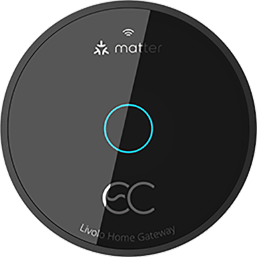
LIVOLO Matter Gateway
Amazon Alexa
Google Home
Homey
Yandex Alice
Works with Alexa

Livolo Smart Switches that Work with Amazon Alexa

Hands-free voice control for every Livolo switch. Compatible with Echo, Echo Dot, Echo Show, and the Alexa app on iOS and Android.

No hub required~3 minutesEcho · Echo Dot · Echo Show

Setup at a Glance

No hub required for Wi-Fi models. Works with all current-generation devices.

01

Enable the LIVOLO HOME skill

In the Alexa app, tap + → search "livolo" → tap Search the Skill Store → select LIVOLO HOME → tap ENABLE TO USE.

02

Sign in to your Livolo account

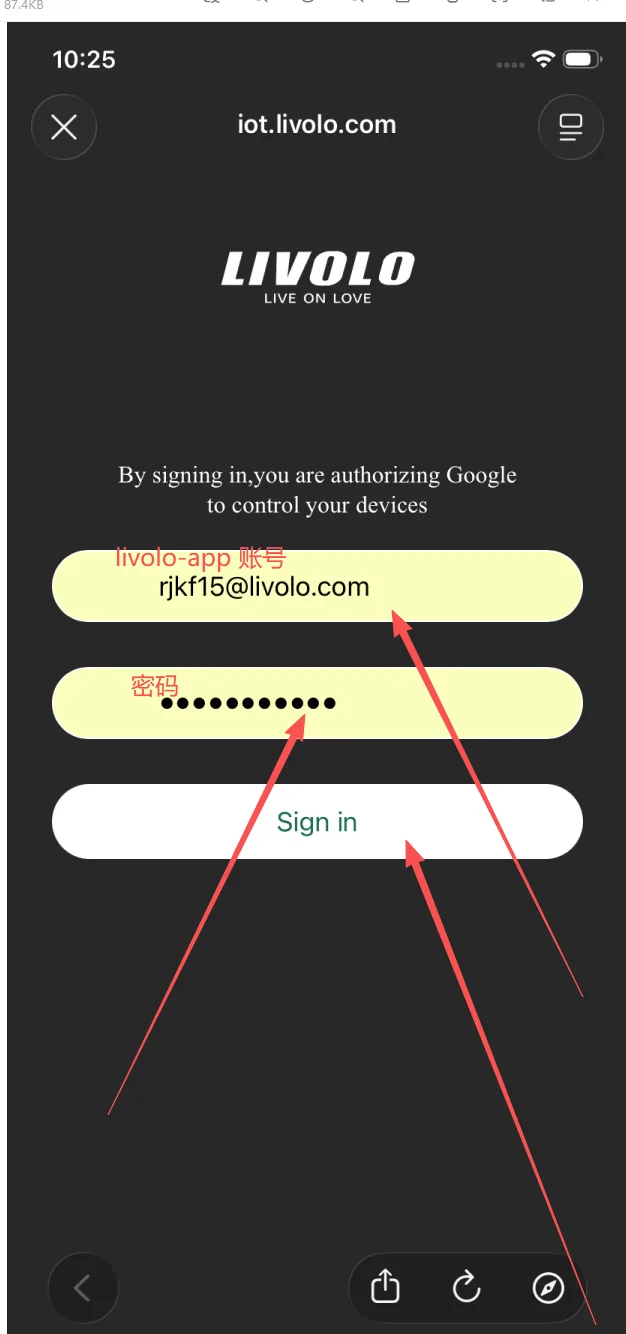
You’ll be redirected to iot.livolo.com. Enter your livolo-app email and password, then tap Sign in to link accounts.

03

Alexa discovers your switches automatically

Alexa pulls in every switch on your Livolo account. Rename by room and start saying "Alexa, turn on the kitchen lights."

Step-by-Step Guide

Step-by-Step Setup Guide

Total time: ~3 minutes. Have your livolo-app email and password ready.

Open the Alexa app and tap +
1

Open the Alexa app and tap +

On the Devices tab, tap the + icon in the top-right corner to start adding a new device.

Search for "livolo" and tap Skill Store
2

Search for "livolo" and tap Skill Store

Type livolo in the search box. Under "Can’t find what you are looking for?", tap Search the Skill Store.

Select LIVOLO HOME
3

Select LIVOLO HOME

Two results appear — LIVOLO and LIVOLO HOME. Tap LIVOLO HOME, the official current skill.

Tap ENABLE TO USE
4

Tap ENABLE TO USE

On the LIVOLO HOME skill detail page, tap the blue ENABLE TO USE button. Account linking is required.

Sign in to your Livolo account
5

Sign in to your Livolo account

You’re redirected to iot.livolo.com. Enter your livolo-app email and password, then tap Sign in.

Alexa discovers your devices automatically
6 ✓ Most users finish here

Alexa discovers your devices automatically

After linking, Alexa shows "Looking for devices to connect…" and imports every switch on your Livolo account. If your switches appear here — you’re done.

(If needed) Choose logo — tap "Can’t find a matching logo?"
7 Optional — if auto-discovery fails

(If needed) Choose logo — tap "Can’t find a matching logo?"

If auto-discovery fails, go back to + → Add Device. On the "Which logo is on your device?" screen, scroll down and tap Can’t find a matching logo?

Select Other
8 Optional — if auto-discovery fails

Select Other

On "Which device would you like to set up?", scroll to the bottom of the list and tap Other.

Tap Discover Devices
9 Optional — if auto-discovery fails

Tap Discover Devices

On the "Set up your device using the device manufacturer’s app" screen, tap the blue Discover Devices button. Alexa runs a fresh scan against your linked Livolo account.

Voice Commands That Work

Real commands tested with Livolo switches. Copy and try.

CommandResult
"Alexa, turn on the living room light"Switches the corresponding light on
"Alexa, turn off all lights"Powers off every Livolo switch in your account
"Alexa, dim the bedroom light to 50%"Works on Livolo dimmer models (e.g. VL-FC1SDZ2)
"Alexa, set the kitchen to 30%"Adjusts brightness via room group
"Alexa, good night"Triggers an Alexa Routine that powers off Livolo switches
"Alexa, is the porch light on?"Reports current state of the switch

Troubleshooting

First confirm the switch is online in the livolo-app. Then re-run Discover Devices in the Alexa app (or say "Alexa, discover devices"). If still failing, go to More → Skills & Games → Your Skills → LIVOLO HOME → Disable Skill, then re-enable and sign in again.

Use LIVOLO HOME. Both appear in search results, but LIVOLO HOME is the current official skill that supports account linking and full device discovery.

Yes — all Livolo dimmer models (VL-FC1SDZ2, VL-FC2SDZ2, etc.) accept percentage commands via Alexa once discovered through LIVOLO HOME.

No. Livolo Wi-Fi switches connect via the LIVOLO HOME skill over the cloud — no Echo Hub or extra bridge needed. Zigbee Livolo models require a compatible hub.

Yes. Livolo switches appear as standard smart home devices in Alexa, so they can be triggered by or included in any Routine (sunset, bedtime, away, etc.).

Yes — link the LIVOLO HOME skill on Alexa and the LIVOLO HOME service on Google Home independently. Both stay in sync with your Livolo account.

Wi-Fi onboarding via the LIVOLO HOME skill is the recommended method. Matter onboarding via a setup code is on the roadmap.

Works with Google Home

Livolo Smart Switches that Work with Google Home

Voice control every Livolo switch on Nest speakers, Pixel phones, the Google Home app, and inside any Google Home routine — using the official LIVOLO HOME service in Works with Google.

No hub required~3 minutesNest · Pixel · Google Home app

Setup at a Glance

Two stages: link the service once, then add new switches as you install them.

01

Link LIVOLO HOME (Stage A)

In the Google Home app, tap + → Link app or service → Works with Google → search "livolo" → pick LIVOLO HOME → Agree and continue.

02

Sign in to your Livolo account

On iot.livolo.com, enter your livolo-app email and password, then Sign in. Google is now authorised to control your devices.

03

Add devices later (Stage B)

Long-press LIVOLO HOME → Check for new devices any time you install a new switch. They appear under "Linked to you".

Step-by-Step Guide

Two-Stage Setup

Stage A links LIVOLO HOME to your Google account (first-time only). Stage B is the short flow for adding new switches you install later. Total time: ~3 minutes.

Stage A — Link LIVOLO HOME (first-time setup)
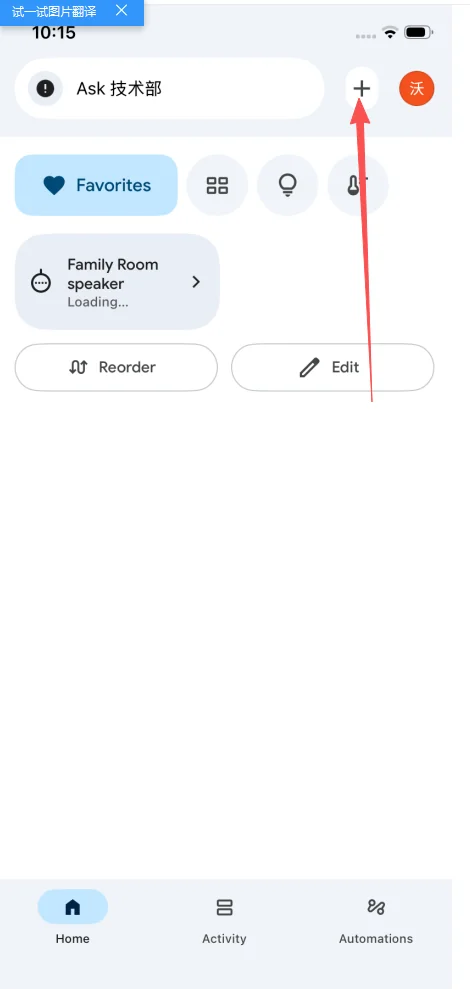
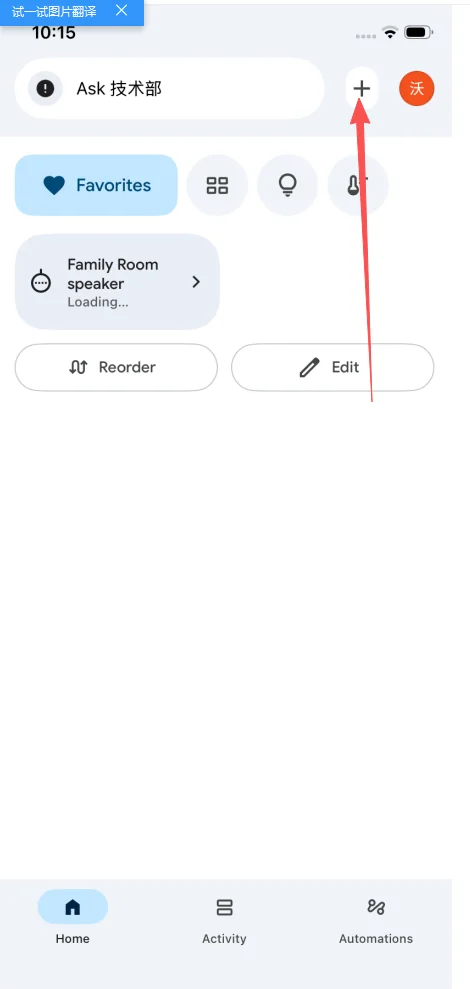
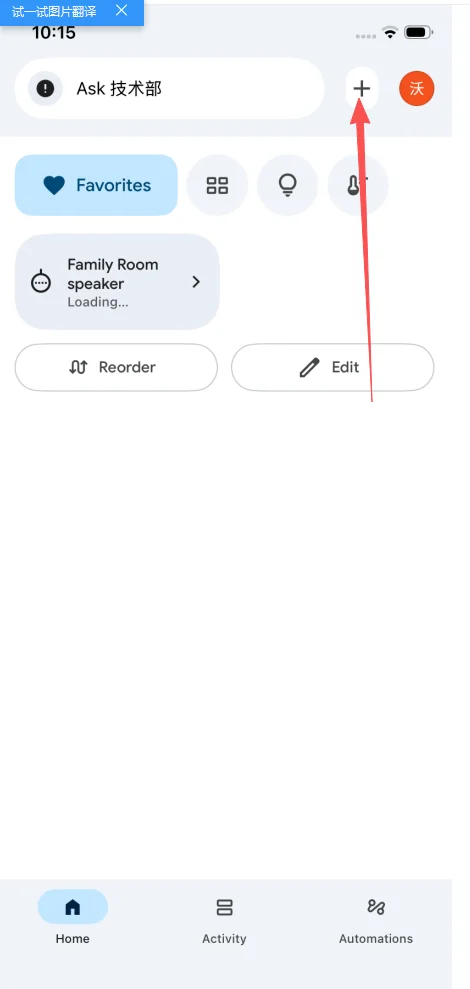
Open Google Home and tap +
A1

Open Google Home and tap +

On the home screen, tap the + in the top-right corner.

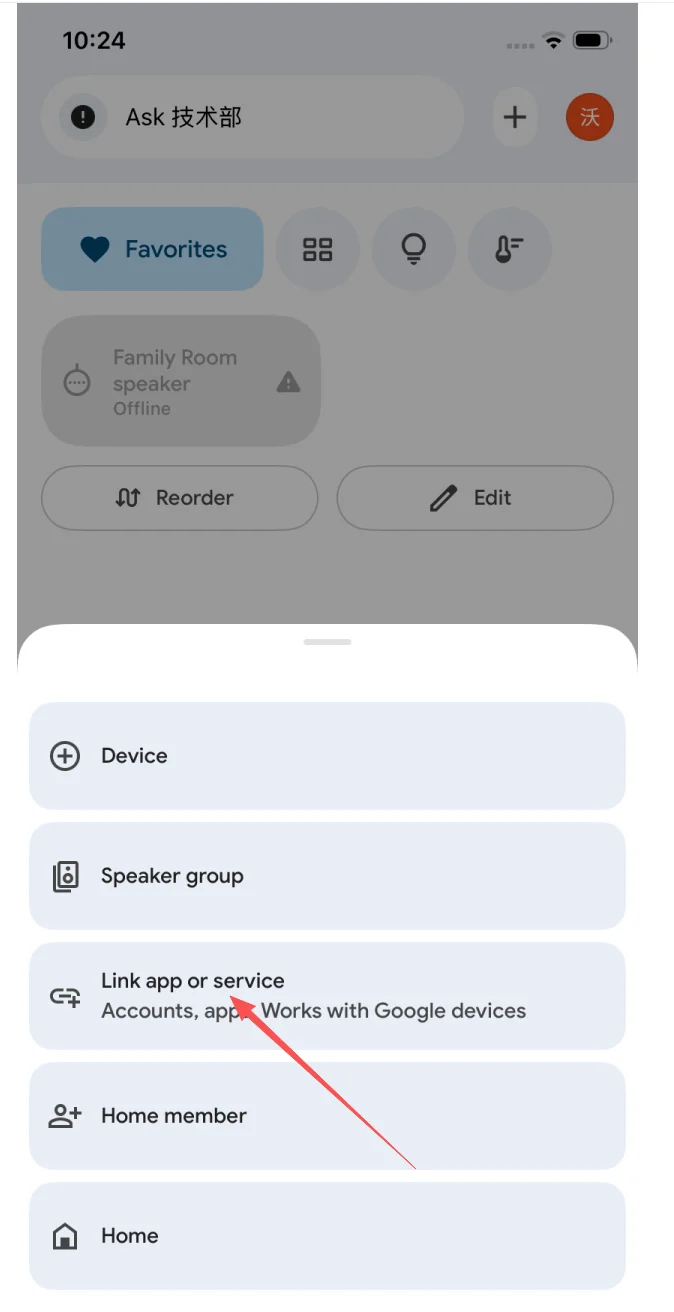
Tap Link app or service
A2

Tap Link app or service

Under "Accounts, apps, Works with Google devices".

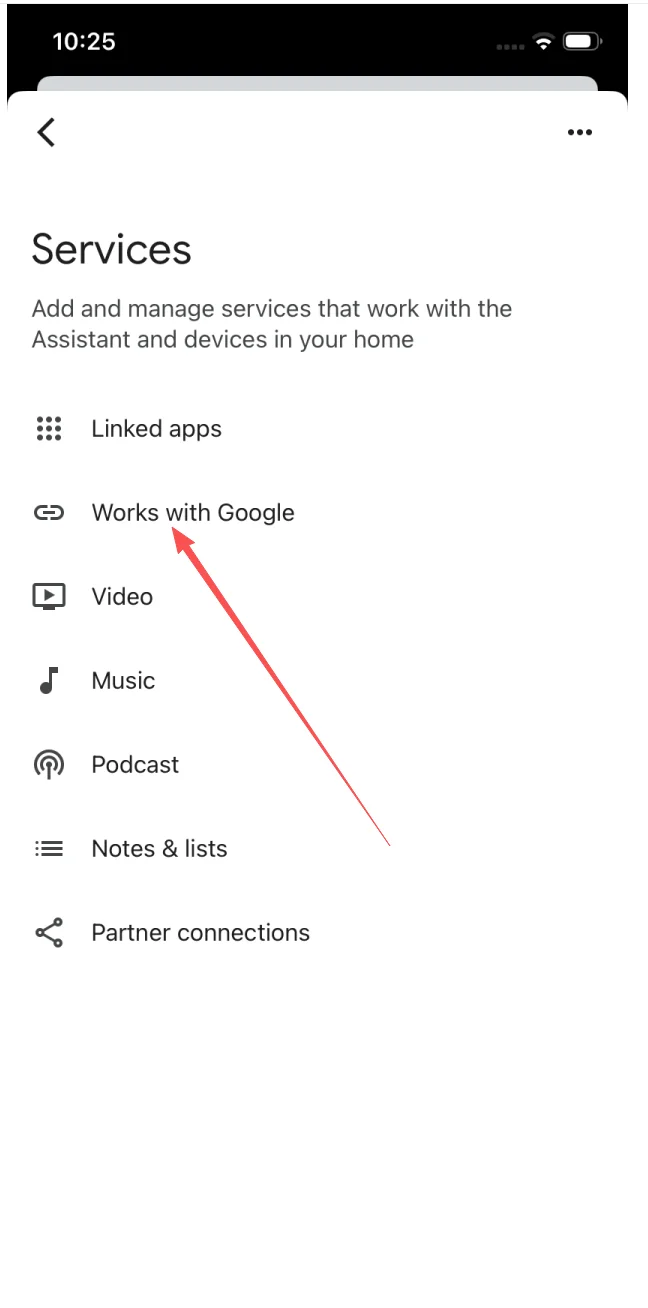
Open Works with Google
A3

Open Works with Google

On the Services list, tap Works with Google.

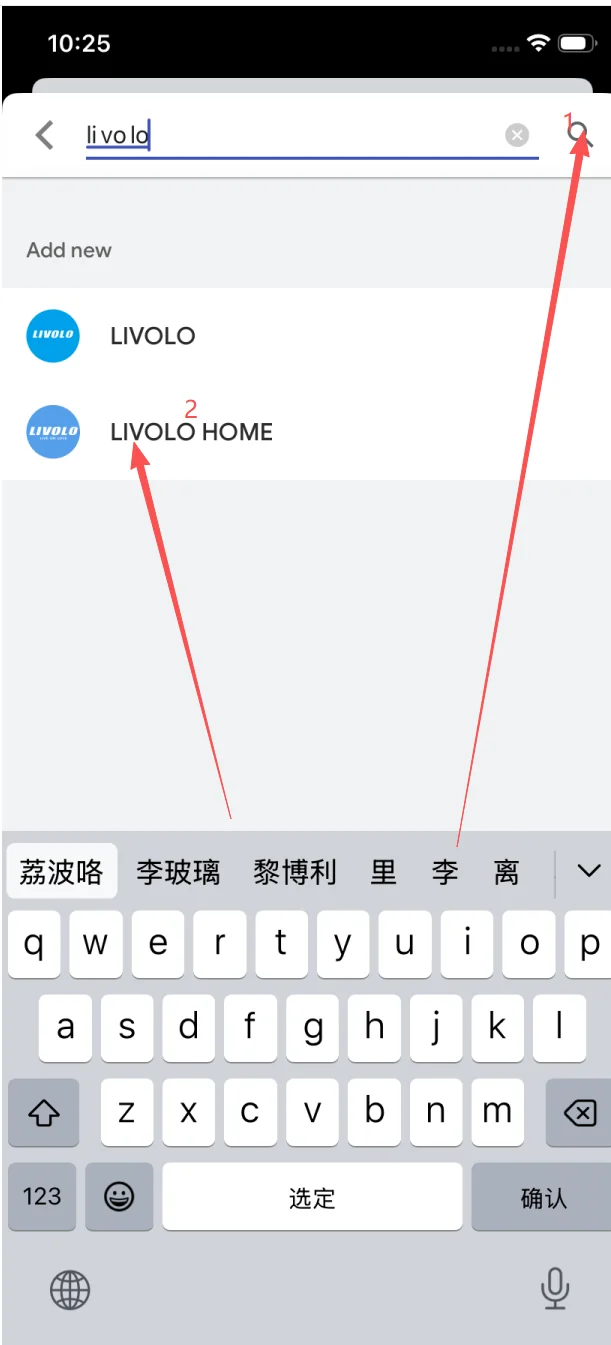
Search "livolo", pick LIVOLO HOME
A4

Search "livolo", pick LIVOLO HOME

Two results appear (LIVOLO and LIVOLO HOME). Tap LIVOLO HOME — the official service.

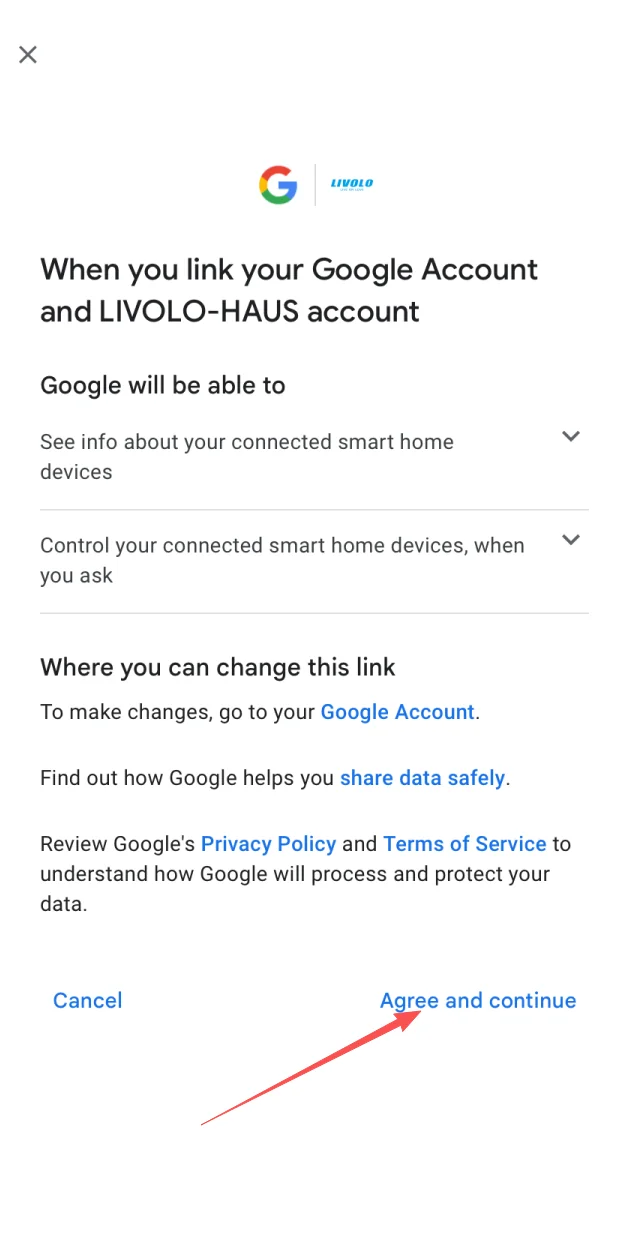
Tap Agree and continue
A5

Tap Agree and continue

On "When you link your Google Account and LIVOLO-HAUS account…".

Sign in to Livolo
A6

Sign in to Livolo

On iot.livolo.com, enter your livolo-app email and password, then Sign in.

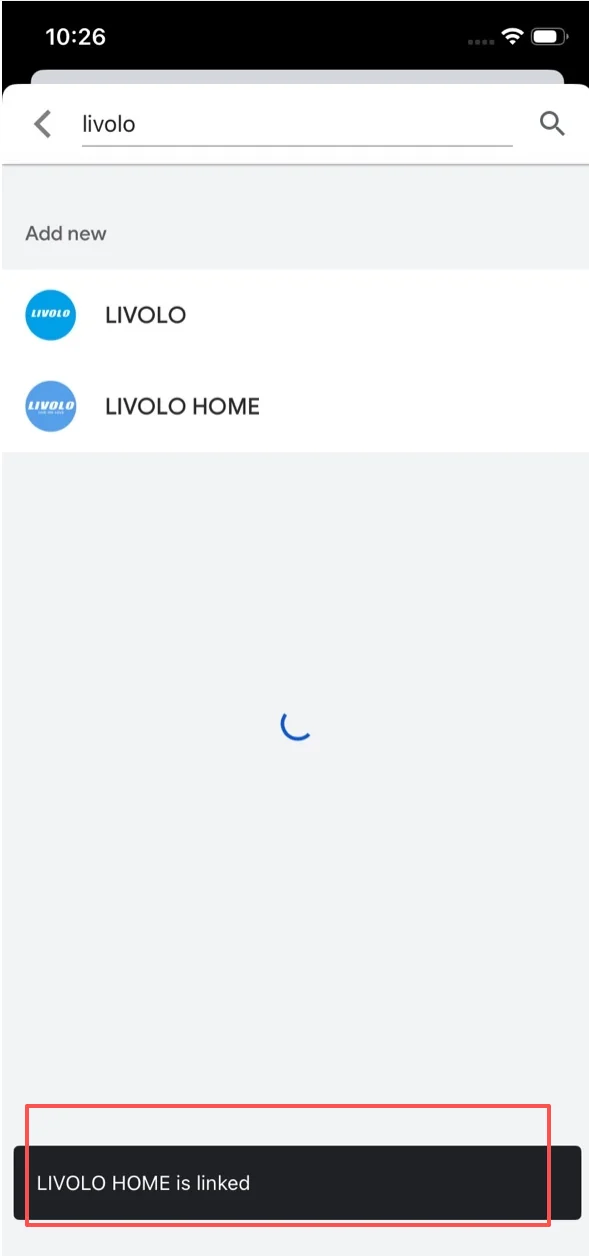
See "LIVOLO HOME is linked" toast
A7 ✓ Stage complete

See "LIVOLO HOME is linked" toast

You’re returned to the Services list. A black toast at the bottom confirms success.

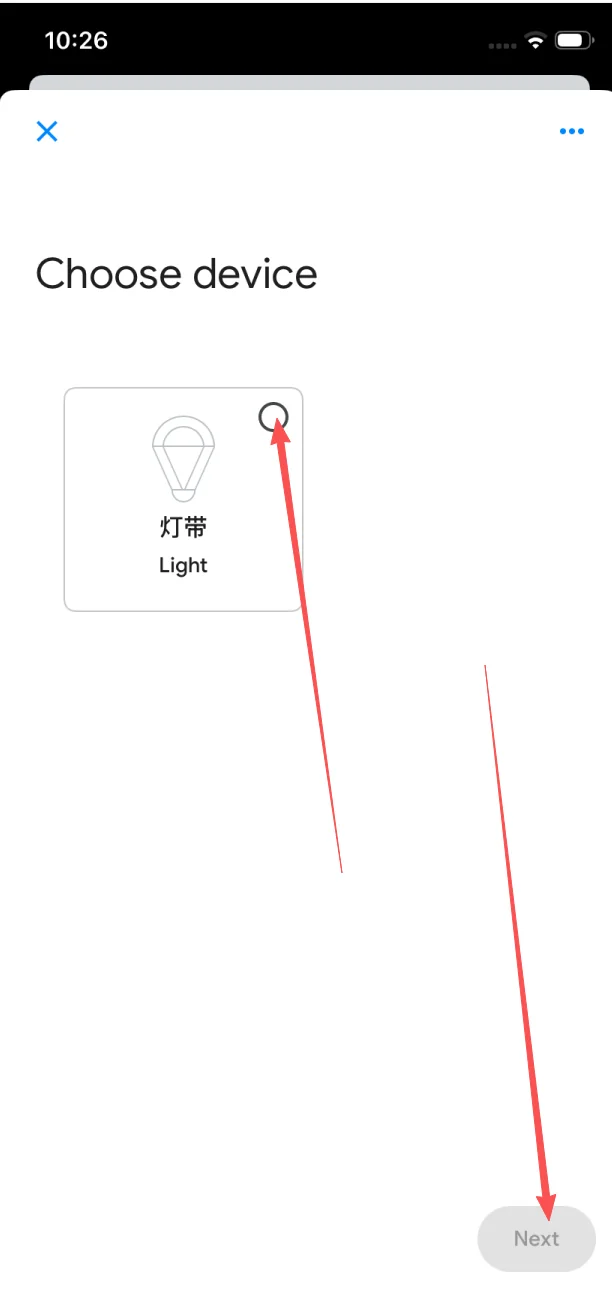
Choose devices to add to your Home
A8

Choose devices to add to your Home

On Choose device, tick the switches/lights you want in this Google Home, then tap Next.

Stage B — Add new switches later
Tap + on Google Home
B1

Tap + on Google Home

Same entry point as A1 — top-right of the home screen.

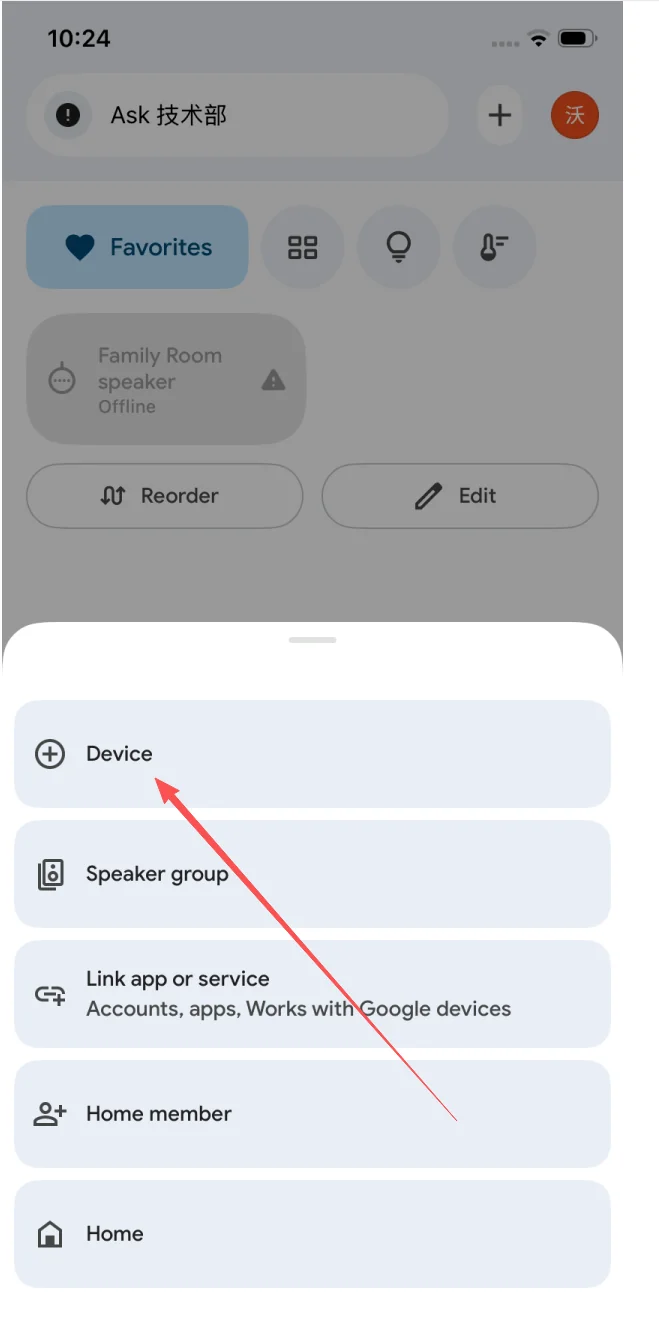
Tap Device (not "Link app or service")
B2

Tap Device (not "Link app or service")

You are already linked, so go straight to device discovery.

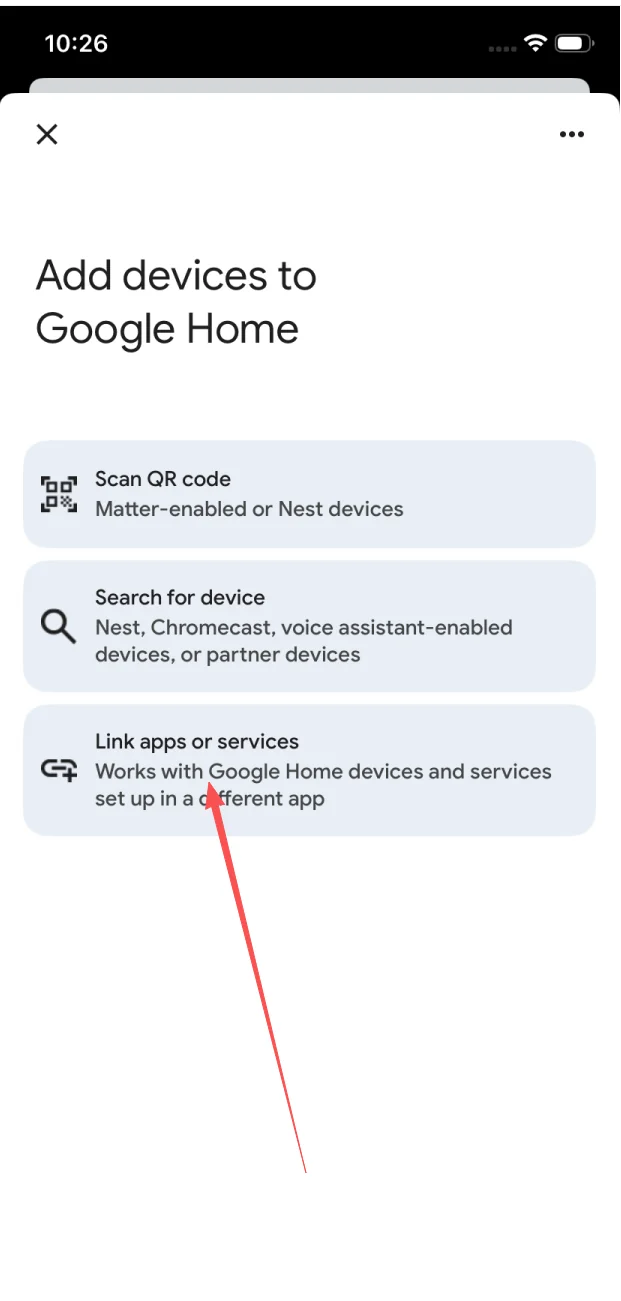
Tap Link apps or services
B3

Tap Link apps or services

On Add devices to Google Home, choose the third option (the other two are Scan QR and Search for device).

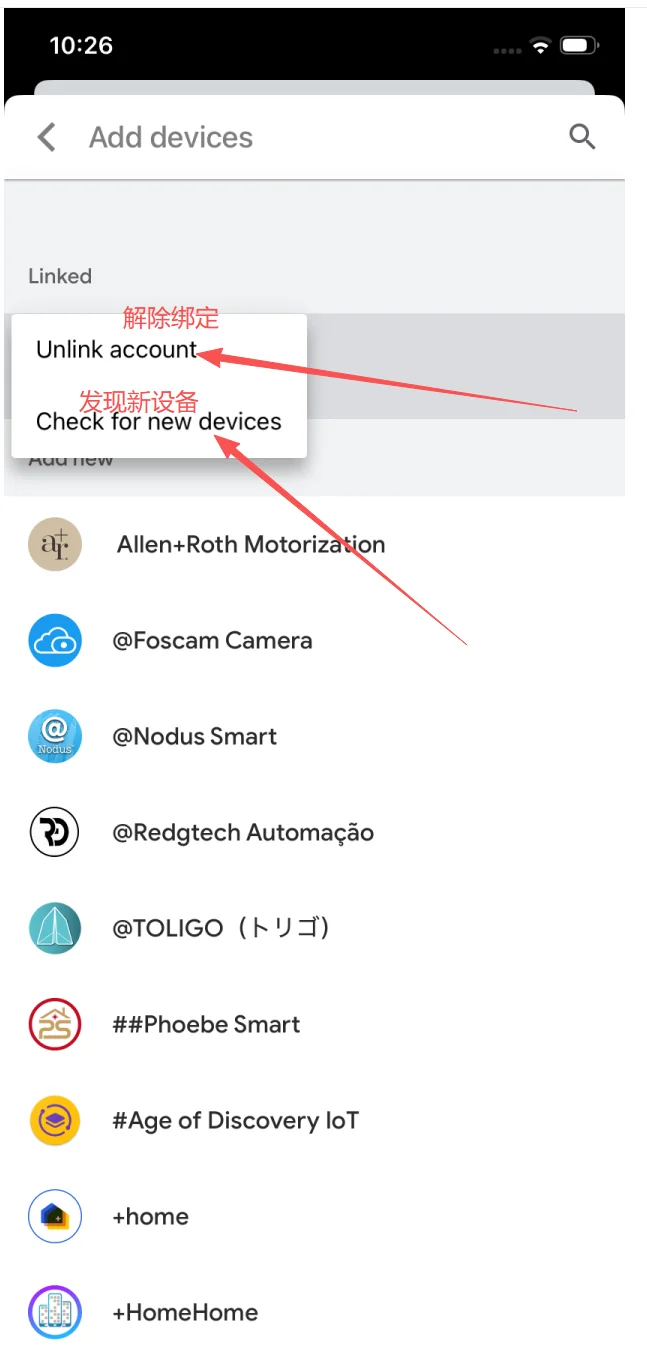
Long-press LIVOLO HOME → Check for new devices
B4

Long-press LIVOLO HOME → Check for new devices

On the linked-services list, long-press LIVOLO HOME. A menu appears — tap Check for new devices. (Don’t tap Unlink account — that removes the integration.)

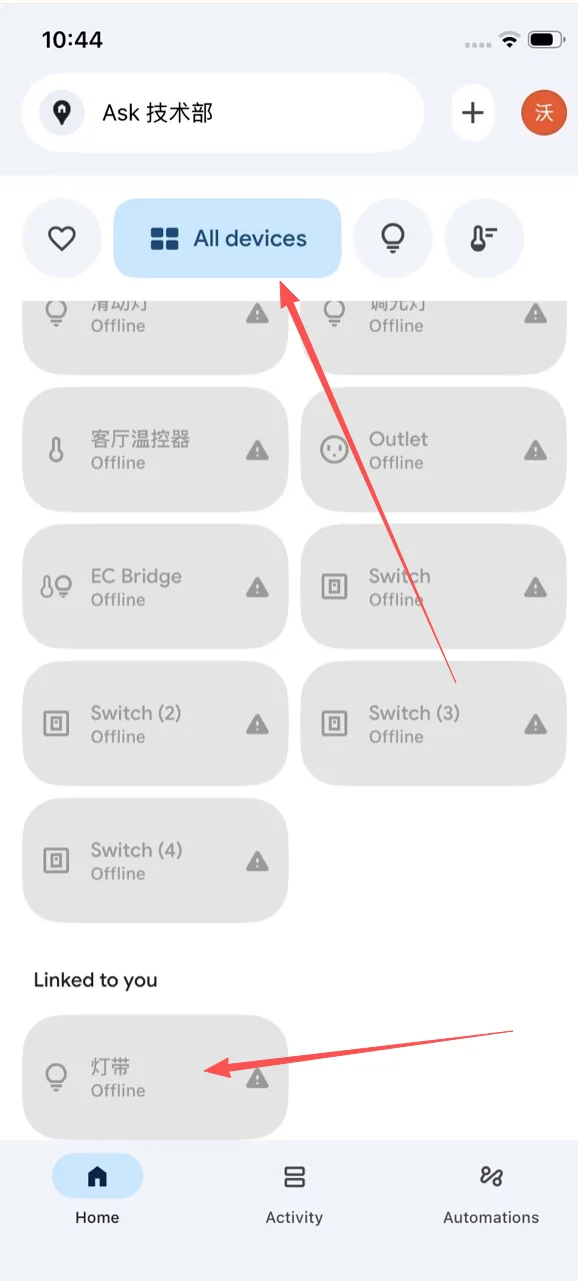
Find the new device under "Linked to you"
B5

Find the new device under "Linked to you"

Go back to home → All devices. Scroll to "Linked to you" — your new Livolo switch appears.

Confirm on the home screen
B6 ✓ Stage complete

Confirm on the home screen

The device is now controllable from the Google Home app and any Assistant surface.

"Hey Google" Commands That Work

Real commands tested with Livolo switches on Nest speakers, Pixel and the Google Home app.

CommandResult
"Hey Google, turn on the kitchen light"Switches the corresponding light on
"Hey Google, set the living room to 40%"Works on Livolo dimmer models
"Hey Google, turn off all downstairs lights"Group control via Google Home rooms
"Hey Google, good night"Triggers a routine that powers off Livolo switches
"Hey Google, is the porch light on?"Reports current state of the switch

Troubleshooting & FAQ

Run Stage B — Check for new devices on LIVOLO HOME. Confirm the switch is online in the livolo-app first.

Re-run Stage A. If sign-in fails, reset your livolo-app password and try again.

Open the linked-services list, long-press LIVOLO HOME → Unlink account, then redo Stage A from the correct Google account.

Make sure the device is assigned to a room and is visible in All devices → Linked to you.

No. Livolo Wi-Fi switches talk directly to the cloud; LIVOLO HOME bridges your account to Google.

Yes — Nest Hub gets device tiles and voice control automatically once Stage A is done.

Yes — linking is per-platform. Both stay in sync via the Livolo cloud.